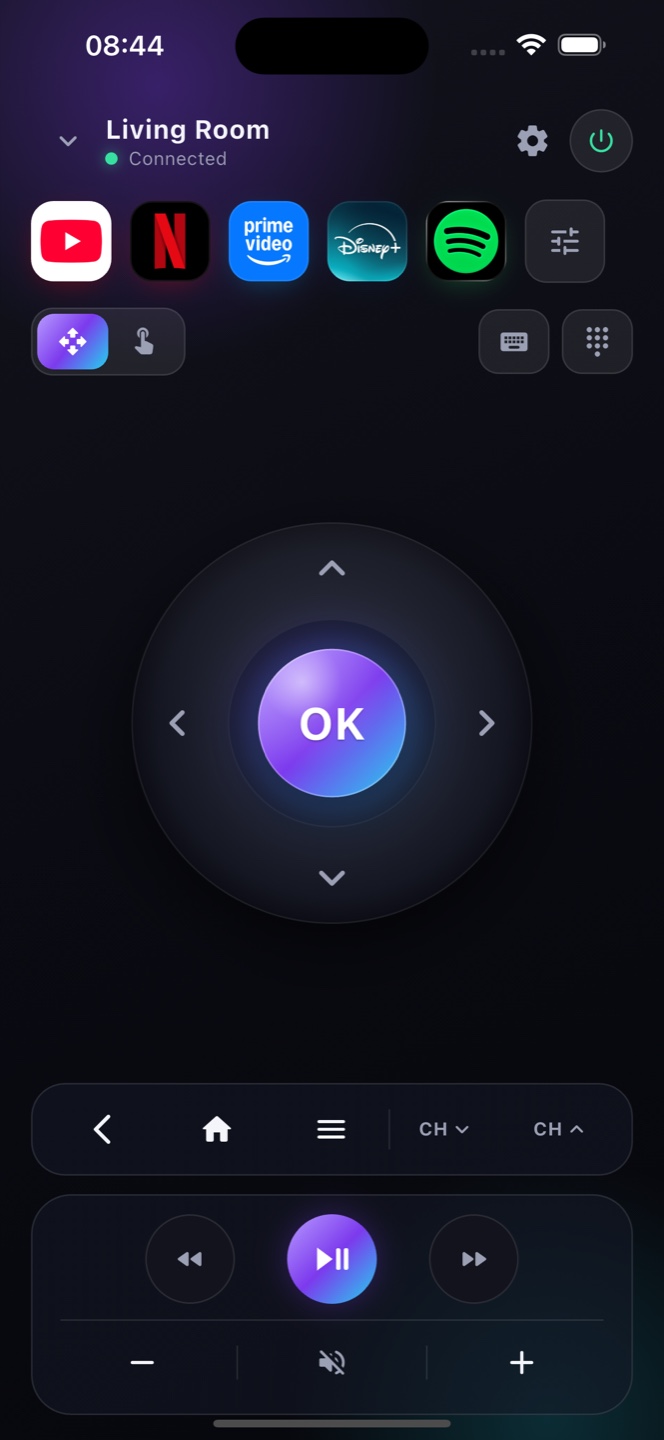
Can any phone be a TV remote?
An iPhone with Zap can control any Google TV, Android TV or compatible smart TV on the same Wi-Fi network.
Does it need internet?
No internet needed — just the same local Wi-Fi. Zap talks to your TV directly over the network.
Is it really free?
Yes. The full remote is free with ads; Premium removes ads and adds extras.
Can I use it without the original remote?
Yes — Zap fully replaces a lost or broken remote while the TV is on and on Wi‑Fi. To power a fully‑off TV back on, enable Network Standby / Wake‑on‑LAN in your TV settings first.
Which TVs are supported?
Google TV, Android TV and most smart TVs and streaming players — Sony, TCL, Hisense, Philips, Xiaomi, Chromecast and NVIDIA Shield among them.
Can I type and search by voice?
Yes. Zap includes a keyboard and voice search that go straight into your TV's search box, so you never peck at an on‑screen keyboard.
Does my phone need to be on the same Wi‑Fi as the TV?
Yes. Zap and your TV talk over your local Wi‑Fi, so both need to be on the same network. Nothing leaves your home and no internet connection is required.
Can I use my phone as a universal TV remote?
Zap is a full remote for any Google TV, Android TV or streaming device on your Wi‑Fi — Sony, TCL, Hisense, Philips, Xiaomi, Chromecast and NVIDIA Shield included. It replaces those remotes completely from one app.